How to Bring Your Child's Drawing to Life with Free AI
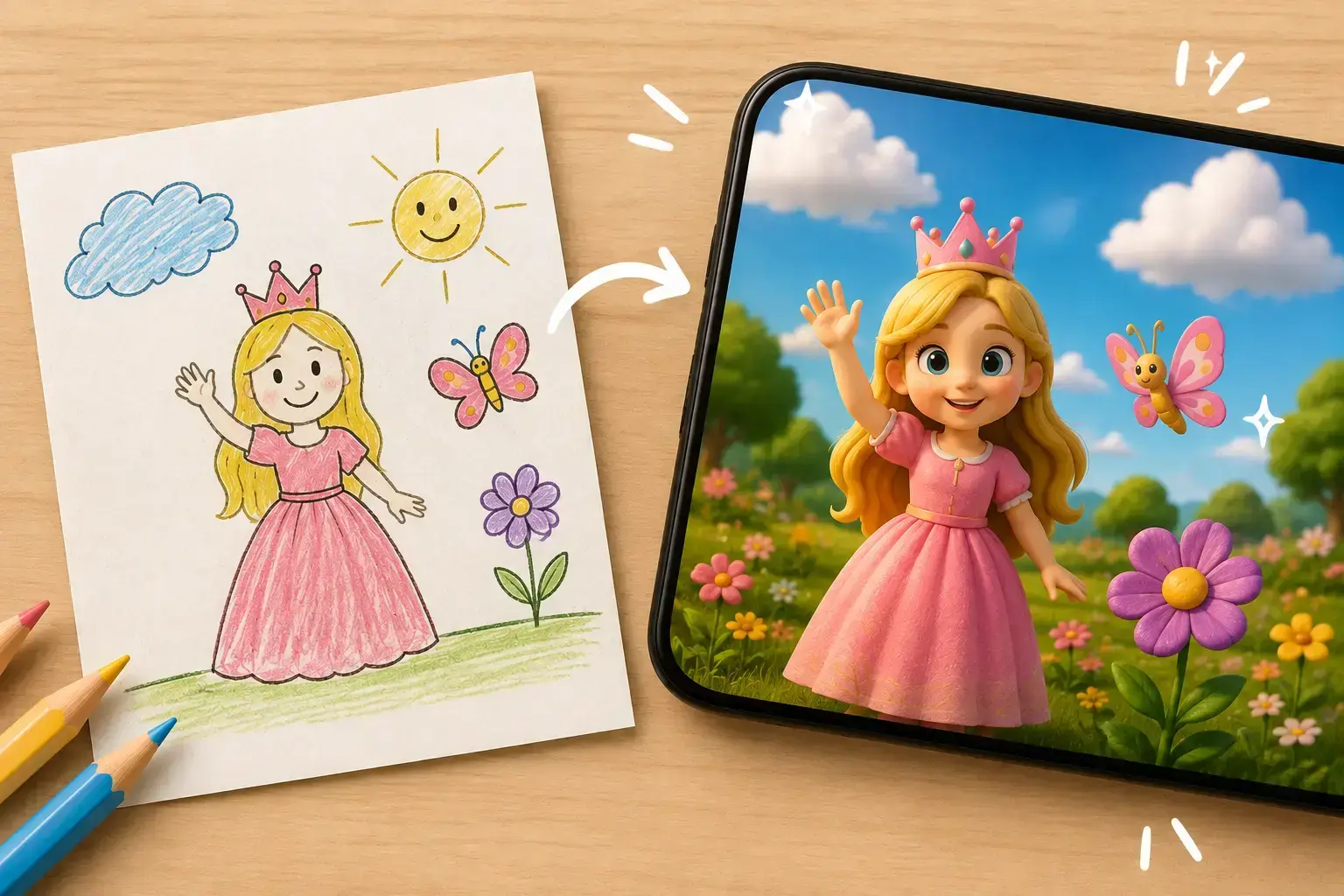
Picture a drawing your child spent an afternoon on: a sun, a few clouds, a princess, a butterfly. To them, it's not just a drawing — it's a whole little world. Now imagine actually bringing that world to life. You don't need a studio, a designer, or paid software to do it. With just your phone and a free AI tool, you can do it in a few minutes.
In this post, we walk through a method that's been getting a lot of attention online — turning a child's drawing (or really any hand-drawn picture) into a short animated clip.
The Idea Is Surprisingly Simple
Here's the core of it: you feed a flat, hand-drawn picture to an AI model, and it turns the characters and objects in that picture into a three-dimensional, moving scene. A child's drawing of a princess, clouds, flowers, and a butterfly can "come alive" in a few seconds of video — the princess waves, the butterfly's wings flutter, the clouds drift gently across the sky.
The result is the kind of content families love: a child's imagination turned into a tiny film, almost instantly.
Step-by-Step: How to Do It
1. Take a Clear Photo of the Drawing
Lay the drawing flat on a surface — a table works fine — in good lighting, and photograph it from directly above. A sharp, well-lit photo matters: the better the AI model can "see" the scene, the better the result will be.
2. Pick an AI Image-to-Video Tool
You'll need an AI tool that lets you upload an image and animate it — something like Google's Gemini app. Tools like this usually offer a free usage quota, meaning you can get started without entering any payment details, using a set number of free generations per day or per month.
Note: free quotas and terms change over time, so it's worth checking the current free-tier limits of whichever tool you choose before you start.
3. Upload the Photo and Ask the Model to Animate It
Once the photo is uploaded, all you need is a short prompt asking the model to turn the picture into a scene — making the characters three-dimensional and giving them natural movement. For example: "Bring the characters and objects in this drawing to life in a realistic 3D scene, with subtle camera movement and natural animation."
4. Review the Result and Try Again if Needed
The first result won't always be exactly what you had in mind. Tweaking your prompt — adding details like "make the animation smoother" or "have the clouds drift across the sky" — and trying a few times usually gets you a better result.
Who Is This Useful For?
- Parents who want to turn their child's drawing into a keepsake worth saving or sharing.
- Teachers who want to present students' drawings in an engaging way in class.
- Content creators looking to make emotional, shareable "before-and-after" style short videos for social media.
- Small businesses who want to quickly visualize product sketches or hand-drawn concepts.
A Few Things to Keep in Mind
- Free quotas are limited. Most free plans cap you at a certain number of videos or images per day or month. Once you hit that limit, you'll either need to wait or upgrade to a paid plan.
- Privacy. If your child's face appears in the photo or video, think about your privacy preferences before sharing it publicly.
- Results aren't guaranteed. AI tools can sometimes produce unexpected or slightly odd results — trying a few variations is completely normal.
Final Thoughts
AI has become a tool that anyone can use in everyday life, not just technical teams. Turning your child's drawing into an emotional, shareable video in just a few minutes is a small but genuinely delightful example of that. And all it takes is a phone, a drawing, and one free AI tool.
Want to try it with one of your own drawings and see what happens?


